
Wired second screen
2nd Display
Plug in a cable and your tablet becomes an extra screen for your computer, with touch. No Wi-Fi, no account, no subscription, and completely free.
Version 1.3.3 · macOS 13 or later · notarized · tablet app needs iOS 15 or later
Use the screen you already own.
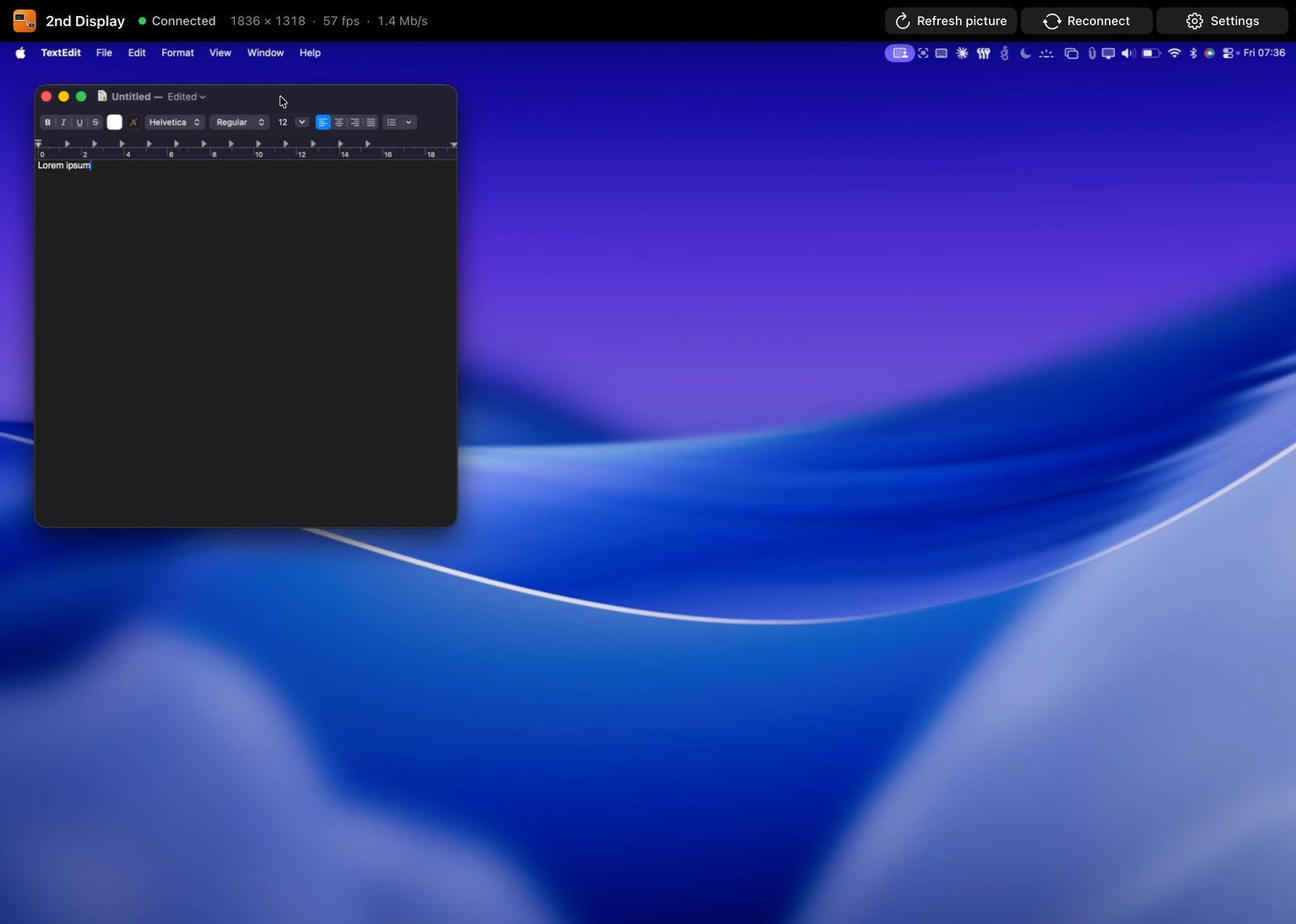
That tablet in the drawer still has a great screen. 2nd Display streams a real extra display to it over the cable, sharp enough for text and quick enough to drag windows around, so you get more room for reference material, chat, music or a second document without buying a monitor.
A look at it
What you get
Wired, not wireless
Video and touch travel over the cable, so there's no Wi-Fi to set up and nothing to compete with on a busy network.
Older tablets welcome
Runs on anything with iOS 15 or later, so a tablet from the back of the drawer becomes a useful screen again.
Touch included
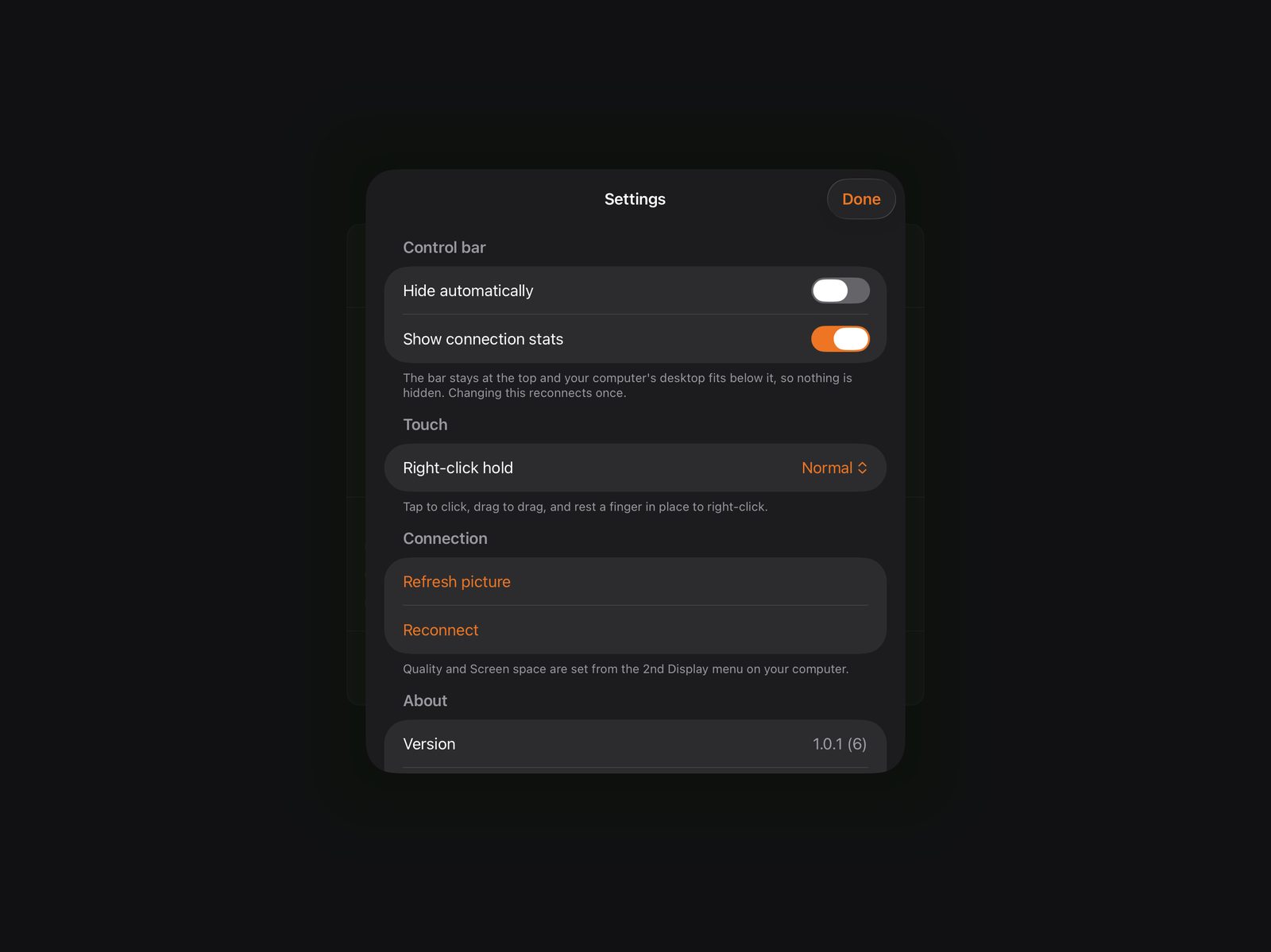
Tap to click, drag to move things, and rest a finger in place for a right-click. A keyboard or trackpad attached to the tablet works too.
Sharp or smooth
Choose full native resolution at 60 fps, or up to 120 fps on 120 Hz screens. Pick how much desktop fits on screen, from largest text to most space.
A control bar that gets out of the way
Connection status, live stats and quick controls slide in when you need them, then tuck away. Or pin the bar and the desktop sizes itself to fit below it.
Private and free
No account, no analytics and no subscription. Your screen goes down the cable to your tablet and nowhere else. The desktop app only goes online when you click Check for Updates.
Set up in a minute
- 1
Install both apps
Download the desktop app above and drag it to Applications, then get 2nd Display for your tablet with the button next to it.
- 2
Allow two permissions
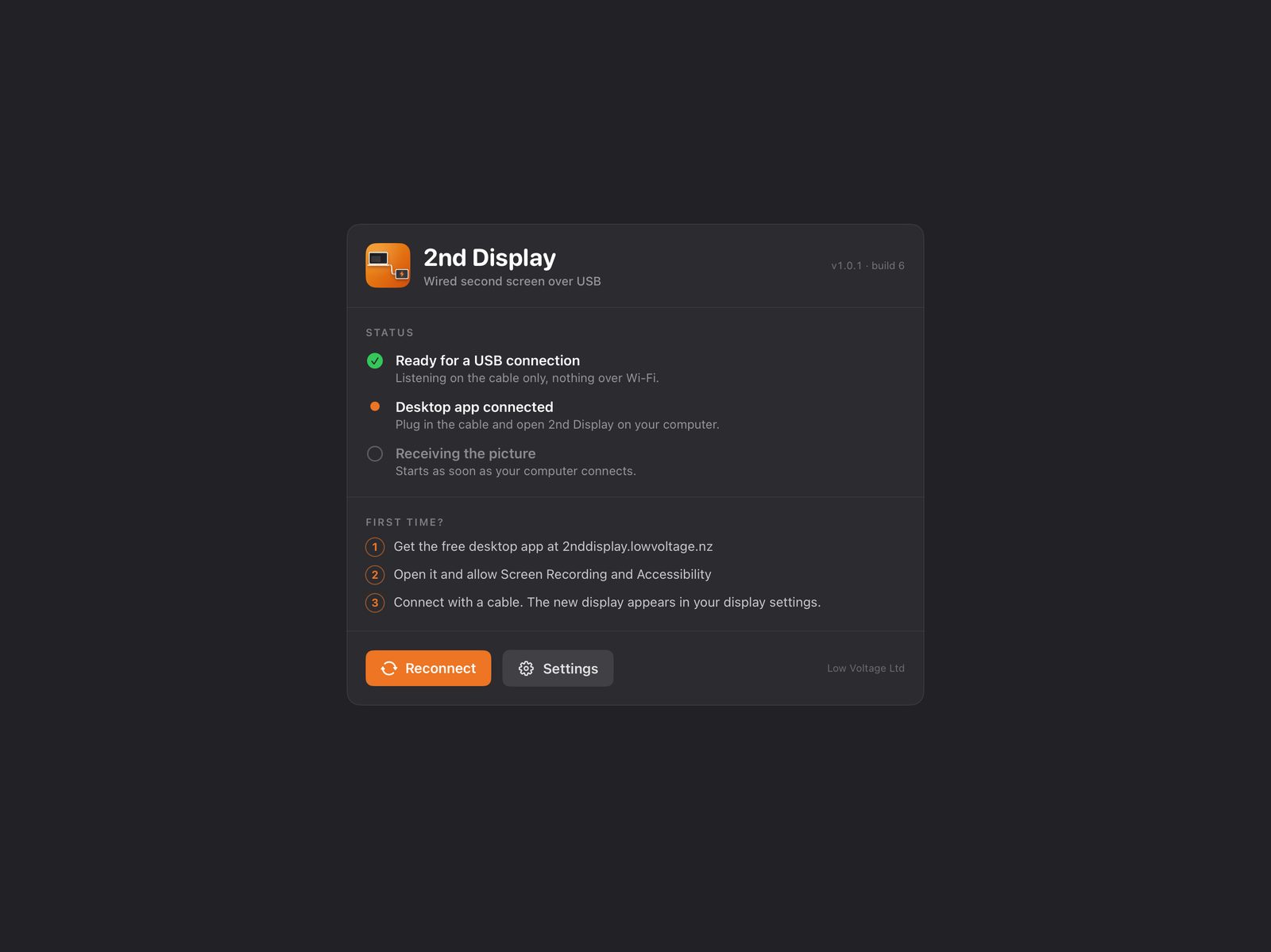
On your computer, allow Screen Recording (to capture the extra display) and Accessibility (so touches can click). You're asked the first time.
- 3
Plug in and open
Connect the tablet with its charging cable and open 2nd Display on it. A new display appears in your display settings, ready to arrange like any monitor.
Requirements
- Computer
- macOS 13 Ventura or later
- Tablet
- iOS 15 or later
- Cable
- The cable your tablet charges with (Lightning or USB-C)
Touch or keyboard stopped working after an update? Open System Settings, then Privacy & Security, then Accessibility. Remove 2nd Display with the minus button, add it again, and relaunch it.
Questions
How is it different from Duet Display?
Both turn a tablet into an extra screen for your computer. 2nd Display is completely free, with no subscription and no account, and it's wired only: video and touch go over the cable, so there's nothing to set up on your network. Duet Display is a paid app that also works wirelessly and on more platforms. If you want a simple, free, wired second screen, 2nd Display does exactly that.
Does it work with Windows?
Not yet. The desktop app is for macOS 13 or later today. Windows support may come later.
Is it really free?
Yes. Both the desktop app and the tablet app are free, with no subscription, no ads and no in-app purchases.